 ibitebyt3s
Guide to Verify Risk & Margin for Past Trades Using FxBlue Data
Hello,
When placing a trade, you normally calculate the Lots to Trade based on your desired risk. But when you’re analyzing trades from someone else—or reviewing the results of an algorithmic trading bot—you’ll often want to know the actual risk and margin behind each trade.
To check the margin, you can use the formula shared in the previous post. For the risk, we’ll make a small adjustment.
Verify Risk
We’ll use a modified version of the risk formula. Instead of solving for Lots to Trade, we’ll solve for Risk ($) to verify whether the executed lot size aligns with the intended risk.
Formula:
$$
Risk\ ($) = \frac{ | (Entry\ Price - Stoploss\ Price) | \times Lot\ Size \times Lots\ to\ Trade } {Conversion\ Rate}
$$
Example
Let’s revisit Example #3 from the previous post: a GBPJPY trade where we had to truncate the Lots to Trade value to two decimal places. Using the same details, we can walk through the steps to calculate the actual risk.
- Lots to Trade: 0.68
- Desired Risk: $500
- Entry Price: 198.758
- Stoploss Price: 199.848
- Conversion Rate: 150
- Lot Size: 100,000 GBP
- Leverage: 100
Step 1. Substitute values into the formula
$$
Risk\ ($) = \frac{ |(198.758 - 199.848)| \times 100,000 \times 0.68 } {150}
$$
Step 2. Simplify the absolute difference
$$
Risk\ ($) = \frac{ 1.09 \times 100,000 \times 0.68 } {150}
$$
Step 3. Multiply
$$
Risk\ ($) = \frac{ 74,120 } {150}
$$
Step 4. Divide – Final Result
$$
Risk\ ($) = 494.13
$$
The actual risk for this trade was $494.13—slightly below the intended $500. This difference is expected, since we rounded the lot size to two decimal places.
Spreadsheet Analysis
Now that the math is clear, let’s see how to automate this process by analyzing FxBlue track record data in a spreadsheet. For this example, we’ll use Google Sheets, though you could also work in Excel if you prefer.
Step 1. Download the Necessary Files
Download the prebuilt spreadsheet:
- Download link here: Fx Blue - Data Analyzer - English.xlsx
Download your trading data from FxBlue:
- Go to the FxBlue webpage of the account you want to analyze. For example, the Aggressive Portfolio: ibitebyt3s-10k-50r or any of the portfolios of my Track Record page.
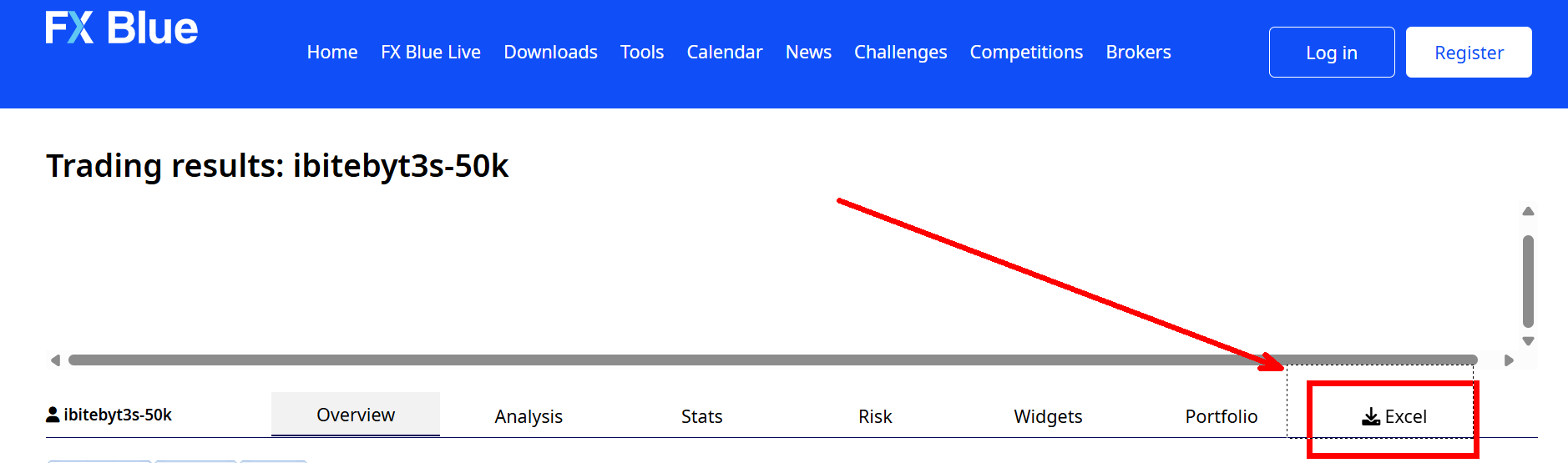
- On the page, click Excel to download the CSV file. This will give you a file like orders-ibitebyt3s-10k-50r.csv.
Step 2. Load the Spreadsheet
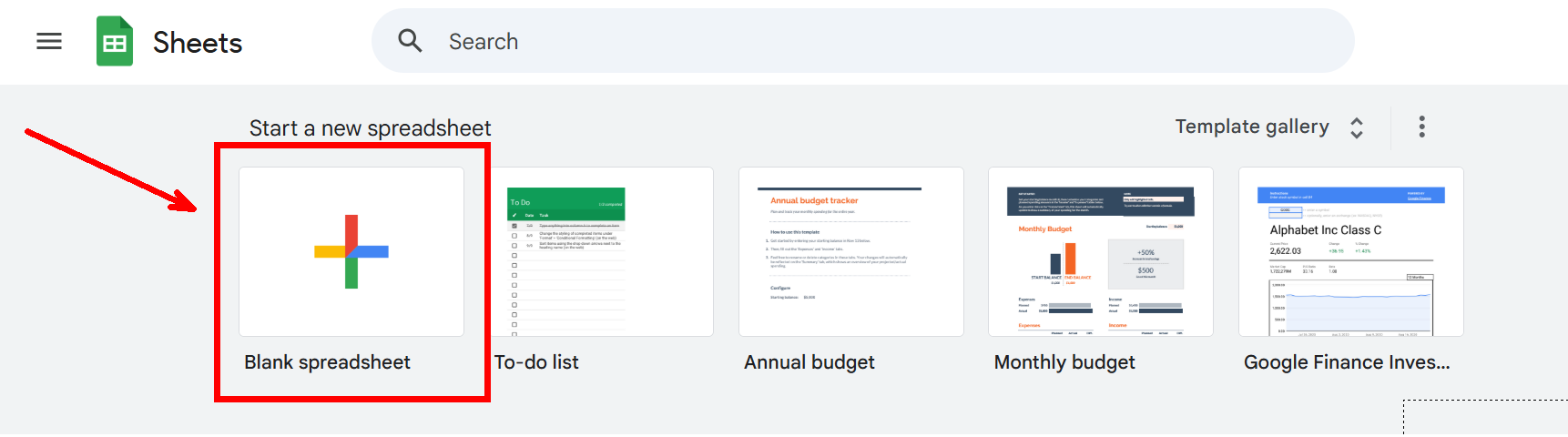
- Go to Google Sheets.
- Create a new blank spreadsheet.
- Select File > Open > Upload > Browse, then upload the
Fx Blue - Data Analyzer - English.xlsxfile.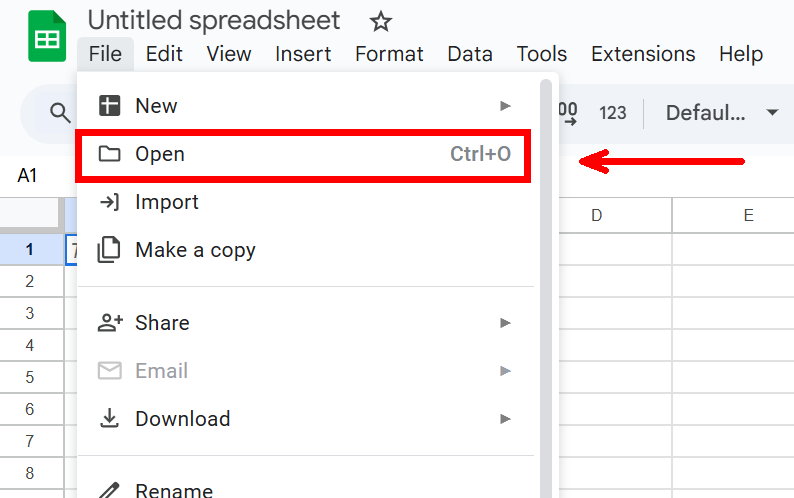
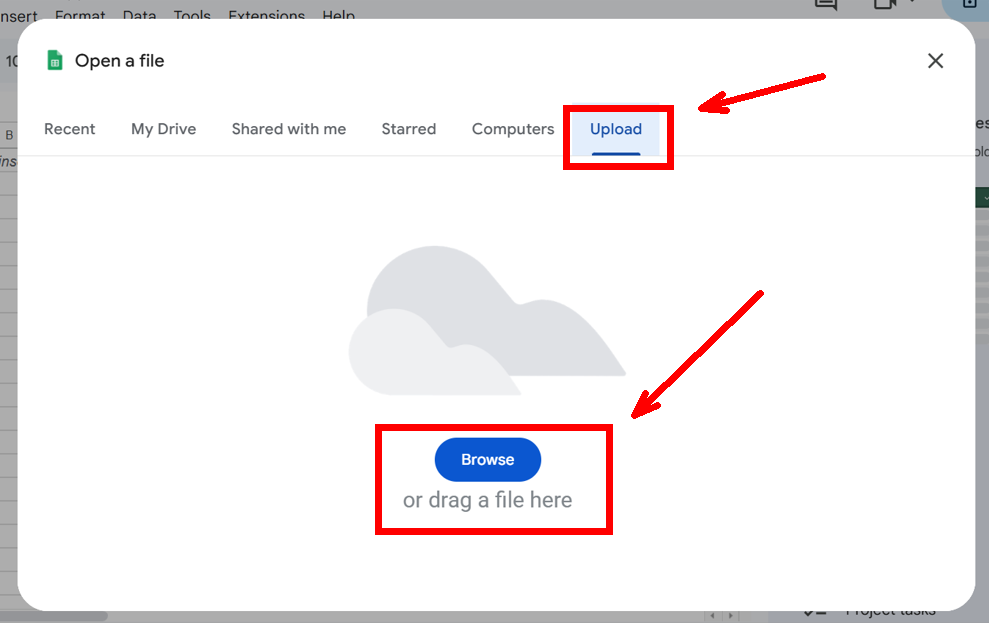
- Once loaded, you’re ready to import your trading data.
Step 3. Import Your CSV Data
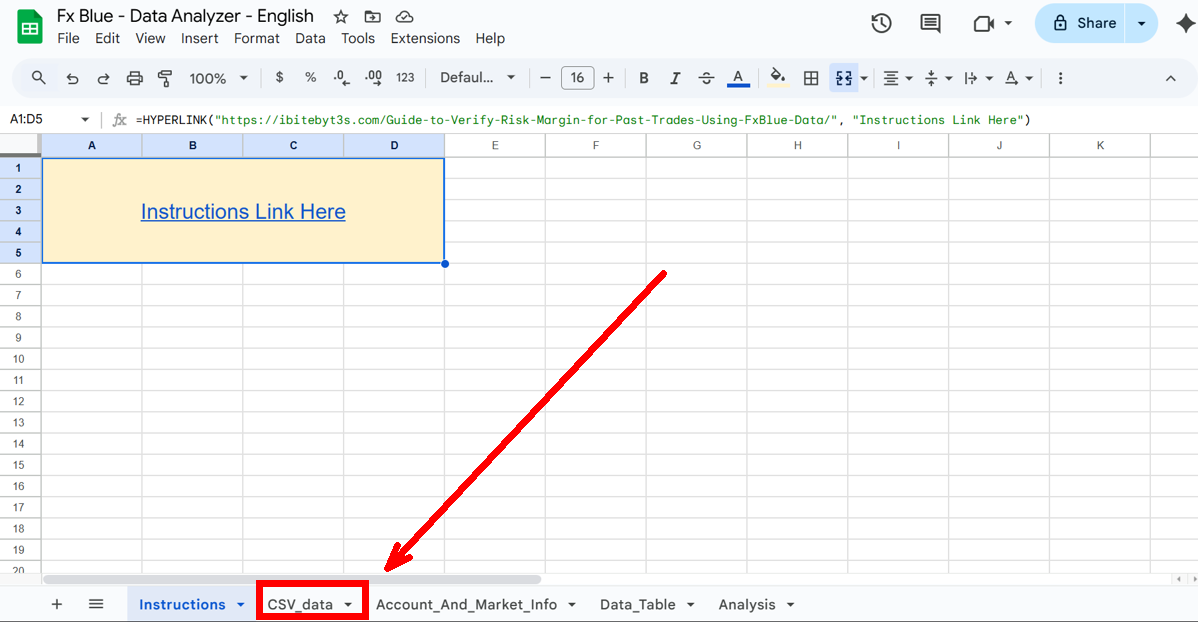
- Switch to the CSV_data tab.
- Go to File > Import > Upload > Browse, then select your downloaded
.csvfile.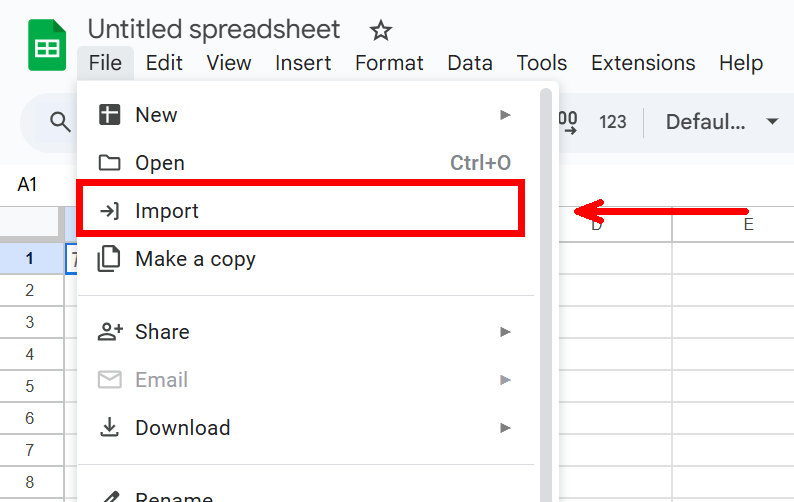
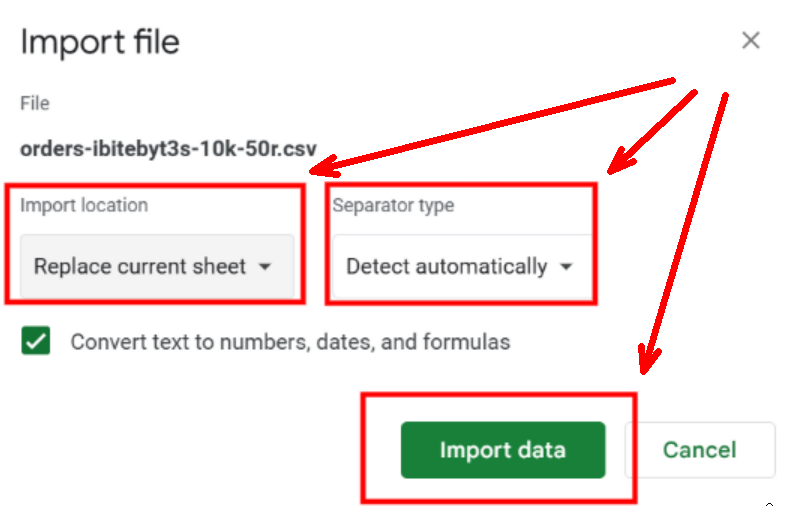
- Set Import location to Replace current spreadsheet.
- Set Separator type to Detect automatically.
- Click Import data.
Step 4. Configure Account & Symbol Info
- Switch to the Account_and_Market_Info tab.
- Enter your account’s leverage in the top-left cell.
- Update symbol information if needed:
- Table 1: Enter each symbol (e.g., XAUUSD) and its contract size. (In MetaTrader, you can find this info here).
- Table 2: Enter conversion rates if your instruments are quoted in non-USD currencies.
- ⚠️ NOTE: The spreadsheet assumes fixed conversion rates, even though real rates fluctuate.
Step 5. Data Analysis
Data_Table
Finally, switch to Data_Table tab to Adjust formulas in the Account Balance and Cumulative Profit columns to cover your full dataset.
This sheet organizes your trading history into clear sections:
- Identifiers:
- Type – The kind of record (e.g., deposit, withdrawal, or closed trade).
- Ticket – A unique ID number assigned to each trade.
- Symbol – The instrument being traded (e.g., XAUUSD, EURUSD).
- Direction – Whether the trade was a Buy or Sell.
- Result: - Tells if the trade was a winner or a loser.
- Risk & Margin:
- Lots – The Lots to Trade of the operation, or in other words, the lots that were traded.
- Risk – The dollar amount accepted to lose based on the stop loss.
- Margin – The capital required to open and hold the trade.
- Profit & Costs:
- Profit – The gross gain or loss from the trade.
- Swap – Interest or rollover fee charged/earned for holding a trade overnight.
- Commission – Broker fee charged for executing the trade.
- Net Profit – Profit after subtracting swap and commissions.
- Account Balance – Total money in the account after the trade closes.
- Cumulative Profit – Running total of profits and losses across all trades.
- Trade Details:
- Open Price – The entry price when the trade was opened.
- Close Price – The exit price when the trade was closed.
- Take Profit Price – The target price set to automatically close a trade in profit.
- Stop Loss Price – The price set to automatically close a trade to limit loss.
- Open Time – The exact date and time the trade was opened.
- Close Time – The exact date and time the trade was closed.
- Pips – The number of price units gained or lost in the trade.
- Trade Duration in Hours – How long the trade was open, measured in hours.
Columns such as Risk, Margin, Account Balance, and Cumulative Profit are automatically calculated. Deposits and withdrawals are shown but grayed out. Open trades are ignored.
⚠️ NOTE: All timestamps are in the broker’s server time (often UTC+2 or UTC+3).
Analysis
The Analysis tab summarizes account performance with key stats:
- Total # of Trades – Total trades executed.
- Total # of Wins – Number of profitable trades.
- Total # of Losses – Number of losing trades.
- Win Rate % – Percentage of profitable trades.
- Account Balance – Current balance after all trades.
- Cumulative Profit – Net profit/loss across all trades.
It also includes charts for Risk, Account Balance, and Cumulative Profit trends.
Final Thoughts
By combining FxBlue’s raw trade data with a structured spreadsheet, you can independently verify the true risk and margin of each trade—not just rely on reported results. This approach is especially useful when analyzing third-party strategies or monitoring automated systems, since it reveals how closely execution aligns with intended money management rules.